

Within this vault, the downloads generated automatically by the system will be monitored, as well as the possibility of creating logs manually when required.
Upon entering the download log vault, all request records that bFiskur® has sent to the SAT will be displayed.
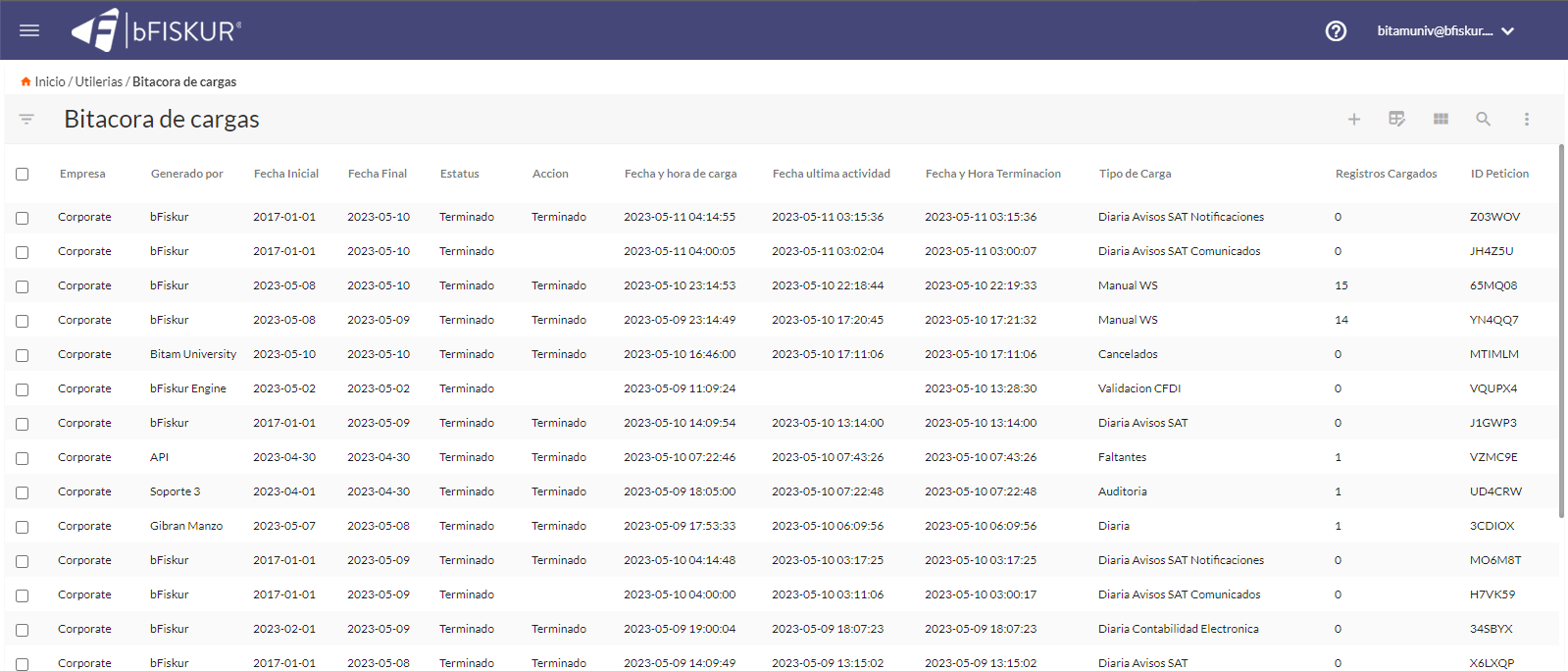
The status of these records should appear as "Completed," indicating that the download of the requested information —such as CFDIs, monthly declarations, or tax situation certificates— has been successfully completed.
Glossary of columns – Download Log
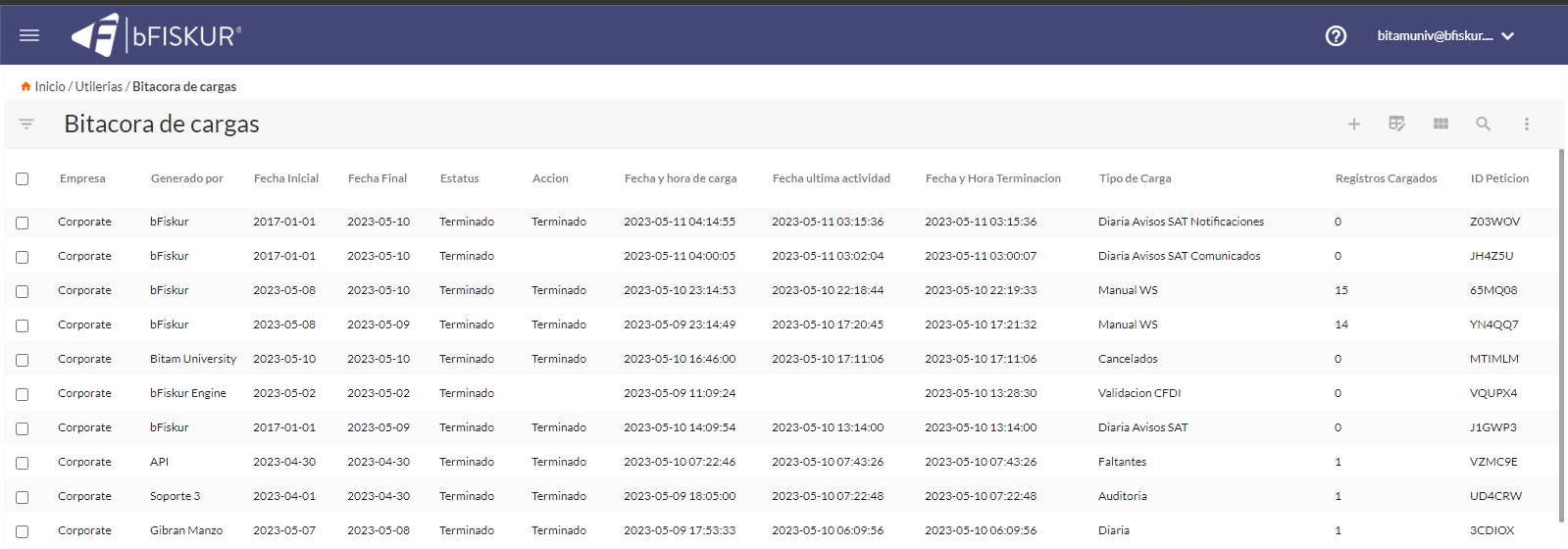
- Company:Indicates the legal name corresponding to the downloaded information.
- Created by:Identifies the user responsible for creating the record or sending the request; if the download is automatic, the bFiskur® robot will appear; otherwise, it shows the name of the executing user.
- Start date:Date from which the information is desired.
- End date:Date until which the information is required for download.
- Status:Describes the status of the record, starting with "Registered" (request received), followed by "In Process" (download in progress) and finally "Completed" (information available in bFiskur®).
- Date and time of upload:Exact moment when the request was sent.
- Date and time of completion:Record of the date and time of completion of the download.
- Type of upload:Specify the type of information included in the record.
- Records uploaded:Applies mainly to CFDIs and indicates the amount downloaded; when the record corresponds to another document, the column will show "0".
- ID request:Unique identifier number for each record.
Create a manual download or update information
Path:Home > Utilities > Download log
Within the section"download log", select the “+” (New) button to start a new record. A form will appear where you must complete the following information:

- Company:Select the corresponding company.
- Start date:Set the start date of the period of interest.
- End date:Define the end date of the desired period.
- Type of process:Select from the following options available in bFiskur®︎:
- Data upload:Download the issued, received, payroll CFDIs and payment supplements for the specified period.
- Review cancellations:Updates the statuses of the CFDIs for the selected period in case there are cancellations.
- Audit missing items:Verify the integrity of the information between the SAT and bFiskur®︎ by automatically downloading any missing CFDI.
- Tax situation certificate:Update the current certificate to the current date.
To submit the request to the SAT, click the button "" (Save). The system will generate a new record in the download log list.